

Install Adobe Extension
If you do not see an Evolphin Zoom panel under Window > Extensions > Evolphin Zoom, install the plugin manually using Installing Creative App Plugin .Checkin Assets
Smart Copy/Clone Project
Within Zoom, creating copies of files is easy using Smart Copy. Unlike conventional copying of files which takes up additional data, creating a Smart Copy allows a file to be copied and edited without having to duplicate data on the server. You can create smart copies of a file or an entire folder. For additional information on Smart Copy, see Smart Copy Assets .
Smart Copy is called Clone Project inside the Zoom Adobe plugin from Zoom 7.0 onwards.
Follow these steps to smart copy / clone your project:
- Save your current document.
- Open the Evolphin Zoom panel by navigating to Window > Extensions > Evolphin Zoom.
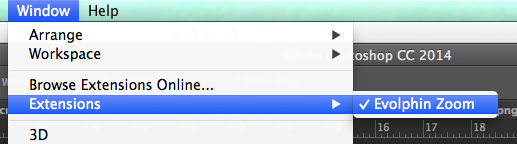
Window > Extensions > Evolphin Zoom - Zoom 7.0: Click Fly-out menu > Clone Project

Zoom 6.0 or below: Click Smart Copy.
- Choose Server URL.
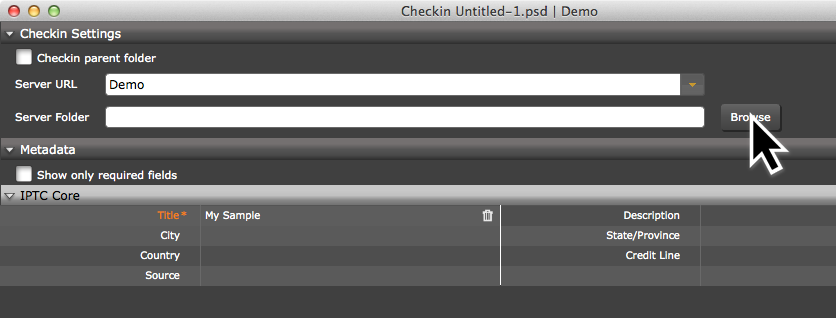
Check Browse – Checkin Dialog - Click Browse to choose the location in Zoom to checkin the asset.
- Fill out any required metadata or keyword values.
- Enable or disable Convert to working copy.
- Click Smart Copy.
Lock/Unlock
Revert/Revert Project
Update/Sync
Task Manager
The Task Manager allows users who have the Workflow module to accept and submit tasks assigned to them within a Workflow Job. The Task Manager can be launched directly from with the Creative App Plugin.
This feature is not available from Zoom 7.0 onwards.
- Open the Evolphin Zoom panel by navigating to Window > Extensions > Evolphin Zoom.
Window > Extensions > Evolphin Zoom - Click Task Manager.

- Click OK.