
Available Archive Modules
An archive module allows the Zoom archive manager to delegate the actual archive/restore operation to a specific archive handler. The following are currently supported:
| Archive Module | Type | Implemented | Description |
| Basic | Internal | Built-in | Supports archiving to a single file system path on the network |
| Path-specific Archive | Internal |
Built-in | Similar to basic, plus the ability to map Zoom project vaults to different file system directories. This allows each brand/business unit to have its own archive storage |
| File System Archive | External |
Zoom 7.3 onwards – using Hub (as Hierarchical Archive) | Supports archiving to external file systems and media using Evolphin’s Hub Server |
| S3/BlobStore | External |
Until Zoom 7.2 – using scripts Zoom 7.3 onwards – using Hub (as Hierarchical Archive) | Supports Object Blob Storage or Cloud-based Storage such as Google Cloud Storage, AWS S3, Cloudian S3, or Microsoft Azure Blob |
| FrontPorch | External | Using scripts | Supports Oracle FrontPorch DIVA |
| SGL | External | Using scripts | Supports SGL FlashNet |
Enable Archive Management License
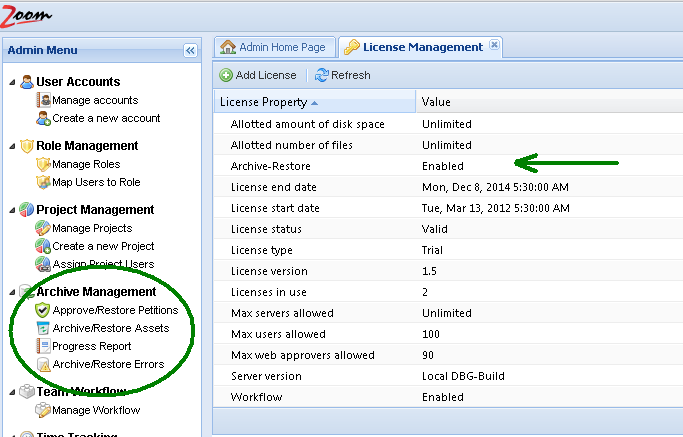
Archiving is an optional feature that is available only to deployments that hold an appropriate license. You can check your license information in Zoom’s web-based administration console.
To check the license information, log on to your administration console in a browser at a URL like this: http://zoomserver:8443/
From the navigation menu on the left, click open the “License Management” option under the “System” menu. If you hold a license that allows archive operations you will see a separate “Archive Management” menu in your navigation panel as shown below.
Configuring Basic Archive Module
For users who have archive as part of the Zoom license they have purchased, Zoom can archive assets to a single designated archive location using the Basic Module. This folder location must pre-exist at the Zoom DAM server in order for the configuration to work. You can configure location of the Archive by doing the following:
- In your preferred web browser, go to the Web Management Console. ex. http://localhost:8443 or http://<zoomserver>:8443
- Log in using your admin credentials.
- In the left sidebar, click on Server Control Panel under the Server section.
- Click on Archive Management.
- Under Archive Location, set the path to the archive folder as it exists on the Zoom DAM server. Ex. e:\zoom\archive\ or /mnt/Archive on the Zoom MAM server.
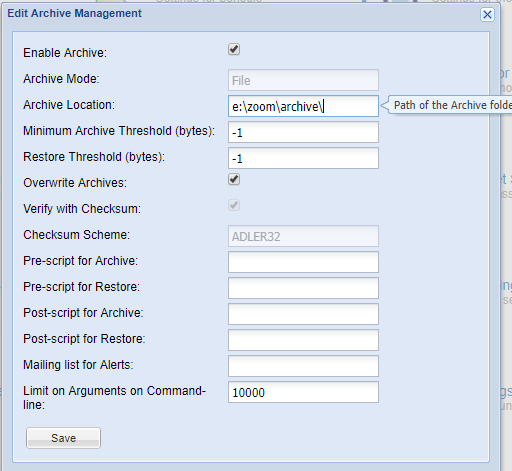
- Restore Threshold: This is the file size in bytes which is a threshold for restore petition. Please check the section on “Restore Petition” for more details. The default threshold is -1.
- Click Save.
- You will be prompted to restart the server. Click Yes.
- Refresh your web browser.