
VideoLX 3.0 is Evolphin’s lightweight proxy-based asset management module that lets Zoom users manage, store, and access high-resolution media files that are saved on high-speed bulk storage outside the Zoom repository. It is an upgrade to the previous VideoLX 2.0 with support for transcoding image and audio files, custom transcoding for different file types, location-based transcoding, and the option to schedule and resubmit transcoding jobs.
The new VideoLX setup is also easily configurable entirely through the Web Management Console without using Perl scripts on any server.
System Requirements
|
Zoom MAM Server |
Transcoder |
Zoom Client | |
|
OS |
Linux (RHEL 7+) or Windows Server 2012+ |
Linux (RHEL 7+) or Windows Server 2012+ (if using Redline) |
Windows 7+ macOS Sierra 10.12.6+ |
|
User Area (USAN) |
Write access |
— |
Write access |
|
Protected Shared Network (PSAN) |
Write access (for Archive) |
Write access |
Write access |
In addition to these requirements, also check for:
- Your Zoom MAM Server is already up and running. See instructions on how to install/upgrade your Zoom MAM Server.
- Ensure you have received a VideoLX license from Evolphin Sales.
- Plan for having either one or more demarcating groups within your entire Zoom network, called locations, that may each use different transcoders to convert high-res files based on different rules for a subset of Zoom Clients. You could use Vantage, VideoLX, or other media converters for such transcoding at individual locations. You would, however, need appropriate licenses for Vantage or VideoLX for each location that you want to set up with these transcoders.
- The Transcoder will temporarily store files being processed in %userprofile%\.zm on a Zoom Client machine. Consider relocating this folder to a path where storage isn’t an issue if planning to transcode a very large number of files simultaneously. Information on relocating this data can be found here: Relocation of Client-side Data (.zm)
- Optionally, plan out the metadata schema to be used as the folder structure for saving high-res assets as well as New Project (Adobe CC plugins) parent folder. For e.g, you could use metadata fields ‘Show’, ‘Season’ and ‘Episode’ to save high-res assets in the folder structure as shown below:

- Decide on which file types need transcoding from Vantage or a media converter. Also, plan for which type of files would be considered high-res and which should be ingested directly. These will be stored later as Ingest Rules.
- Choose a machine to install SQL Server or use an existing SQL Server for process reporting.
- Plan on having an exclusive Zoom user account for the Transcoder. One Zoom user account per Transcoder will be needed.
After checking these requirements, follow these steps to continue:
- Check VideoLX and Vantage licenses on Zoom Server
- Set up a shared network location
- Define metadata schema on the Zoom server
- Set Ingest Rules on Zoom Server
- Location setup
- Allocate licenses for locations
- Set up a SQL database
- Set up your Transcoder
- Register Transcoder for each location with your Zoom Server
- Set up Zoom Clients
- Validate your VideoLX 3.0 setup
Check VideoLX and Vantage licenses
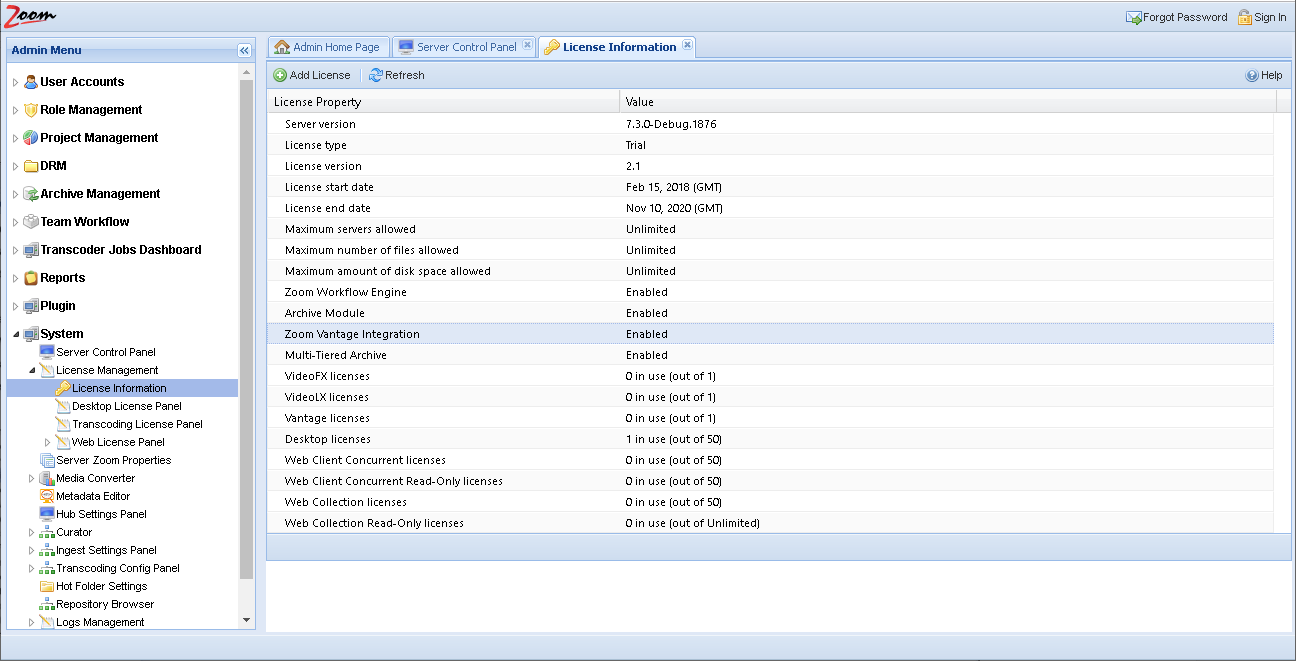
Check if you have the appropriate number of licenses required for VideoLX. The licenses are shown in the Web Management Console.
In the Web Management Console, open the License Management node under the System node in the Admin Menu sidebar. Open the License Information page. Check that the counts for VideoLX licenses are as per your expectations. If needed, check with Evolphin Support to get more licenses. You would need one VideoLX license for each location that would use the VideoLX flow.
Set up a shared network location
VideoLX needs high-capacity storage on a network location to store the high-res files. This location should be accessible from all other components of the VideoLX system. Click here to know how to set up a third-party mount point. This network location should be accessible on all machines in your VideoLX setup, including the Zoom MAM Server, the Ingest Server, the Transcoder, and all Zoom Clients.
Define metadata schema
Set Ingest Rules
Location settings
Allocate licenses for locations
With multiple VideoLX licenses, you could set up multiple locations in your Zoom setup as shown above. After setting up locations and their properties, you also need to specify which Zoom modules will be enabled for which location.
Assign licenses for VideoLX
Set up SQL
To log and view the progress of the transcoding processes on various Transcoder machines, you need to configure a SQL database in the server control panel. If you do not have a Zoom script database set up already, then install and configure an SQL server like MySQL, and set up the schema for process reporting as described here.
Set up your Transcoder
You need a Transcoder for each location set up on your Zoom Server.
A Transcoder should be running an instance of Zoom Preview Server. If you are using your existing Preview Server as a Transcoder then you can skip Installing Zoom Preview Server on this Transcoder.
Register Transcoder with Zoom Server
You would need to register your Transcoders with your Zoom Server. Open the Ingest and Transcoding Service page: http://[TranscoderIP]:8873/review/transcoding/index.html (use 8973 when working with https) from anywhere on your network.
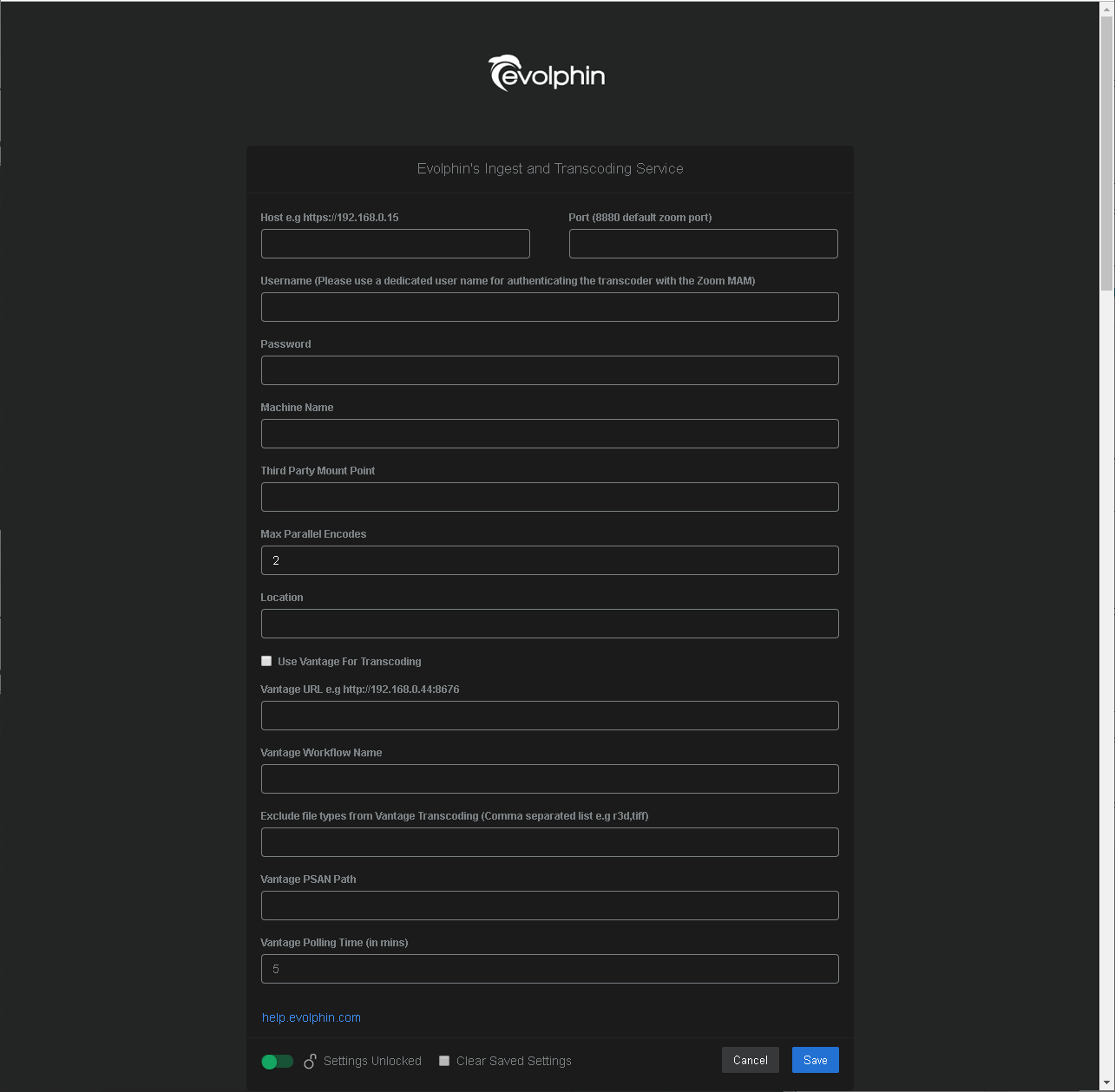
Host and Port: specify your Zoom Server hostname and the port on which the Zoom Server connects. Enter port 9880 if using SSL, otherwise, enter port 8880. If you use another port for the SSL connection on the Zoom Server, then specify that port value (the SSL port for your Zoom Server may be checked on the Zoom Server. Click here for more details about setting SSL ports)
Username and Password: specify Zoom user credentials that the transcoder will use to connect to the Zoom Server. This user should be used exclusively by this Transcoder Machine. It will consume a Zoom user license. Do not use your admin or personal user account as that will cause the authenticated session between the servers to be invalidated.
Machine Name: give a name for the Transcoder machine without using any spaces or special characters (!, @, #, %, $, & ,*, (, ), _, +).
Third Party Mount Point: specify the Third Party Mount Point Path. This path should be available or mounted on the Transcoder.
Max Parallel Encodes: specify the maximum number of encoding jobs allowed parallelly. The default value is 2.
Location: specify the Location name that was configured exclusively for this Transcoder.
Use Vantage for Transcoding: this option should be disabled as VideoLX setup does not use Vantage. The rest of the options on the page will be disabled as these relate to a Vantage machine only.
Click Save. If the values are valid then these are saved. The Transcoder is registered with the Zoom Server and is ready to use.
This Transcoder will now be added to the Transcoding Settings page in the Web Management Console. Access the Transcoding Setting page from the Transcoding Config Panel in the System node in the Admin Menu sidebar.
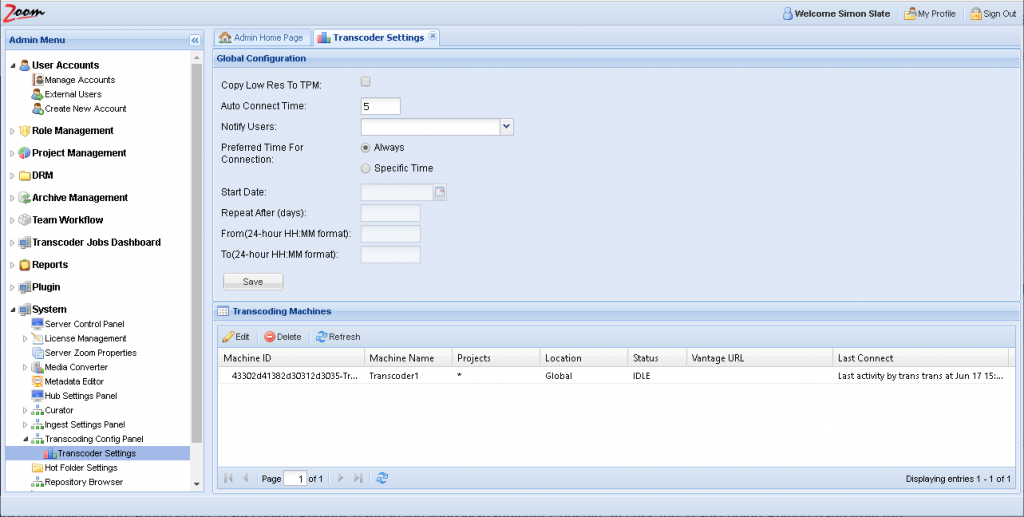
You can update the global settings for transcoders from this page. You can schedule the transcoders to only run at a specific time within a specific interval of days using the Preferred Time For Connection option. Update the desired values and click Save.
If any supplied value is not valid, then an error is displayed indicating the value is not validated.
Similarly, you can set up multiple Transcoder machines. You can also modify any Transcoder’s settings from this Ingest and Transcoding Service page or the Transcoder Settings in the Web Management Console.
Double-click on any transcoder listed in the Transcoding Machines box to open it for editing.
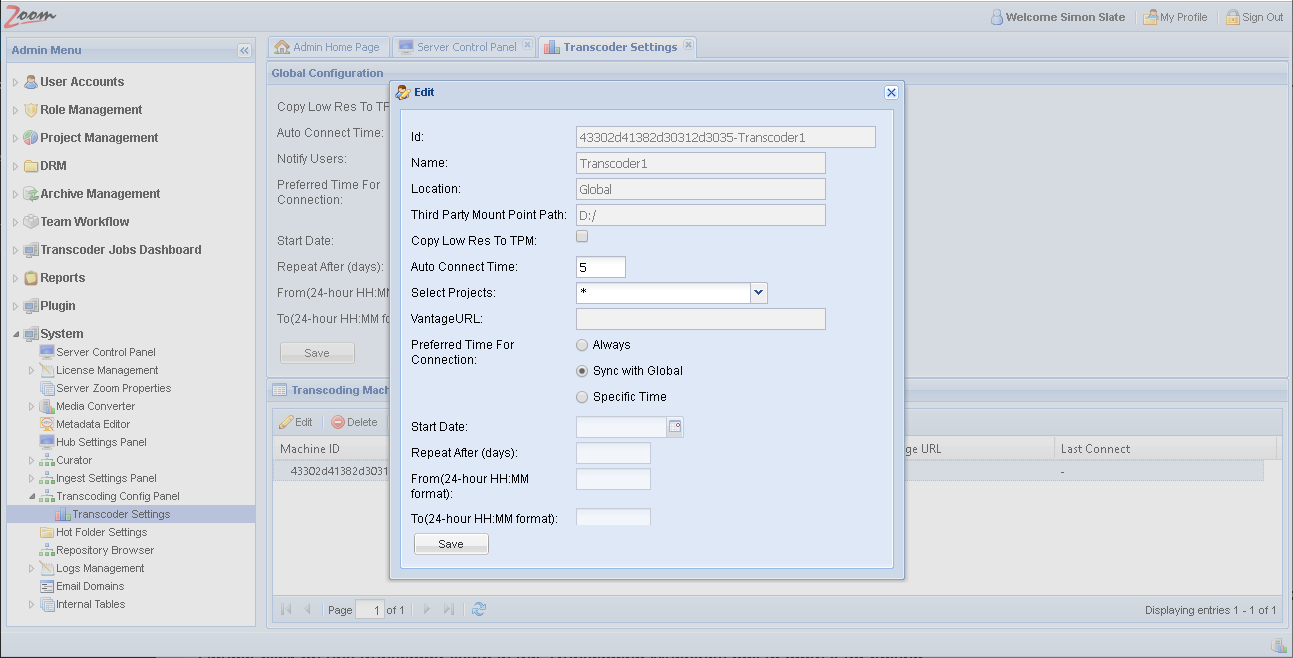
You can specify the projects which will use this transcoder for their transcoding jobs. You can also schedule this transcoder to run at a different preset time and frequency than the global settings. Modify the desired values and click Save.
Set up your Zoom Clients
Follow ahead to set up Zoom Clients to make use of VideoLX 3.0.
Validate your VideoLX 3.0 setup
Follow this post to check if your VideoLX flow works as expected.