

Ingest
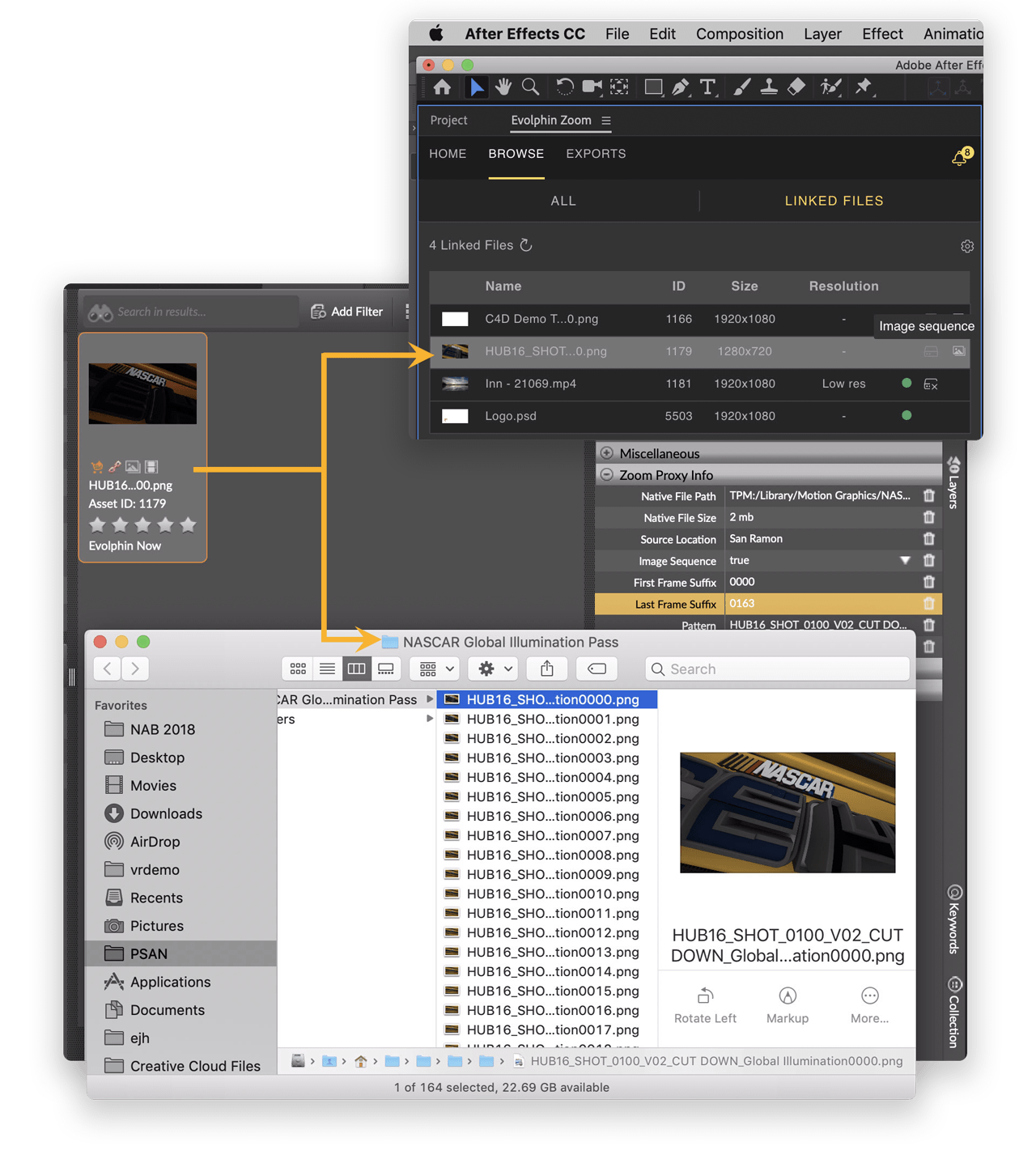
Zoom can map a sequence of images as a single compound asset. Traditional solutions will ingest individual frames as individual files, costing you time & money to store & index each and every frame. Search can become a nightmare across millions of frames that all look similar.
Take a look at the image sequence ingest below. The user simply drags a folder with 165 images into Zoom Desktop app. Instead of creating 165 different files for each frame, Zoom ingests them as a single compound asset. The frames in a sequence are treated as a “hi-res” files and will be copied to your hi-res storage such as AWS S3 bucket or a shared on-premises NAS/SAN. Metadata in Zoom tracks the starting frame and total frame count.
Use any of our desktop apps including the Desktop Browser or the Adobe After Effects Plugin to search an image sequence as a compound asset & then drag-n-drop to automatically link with 1000s of individual frames. If the frames are not accessible on a shared drive you can first download them using “Restore” option in Zoom Asset Browser.
Learn how to install desktop browser, Adobe CC plugins & more »
Learn how to manage content, metadata, users roles & much more »
Learn how Zoom helps Business Owners track job approvals, generate reports »
Collaborate with Clients, Review & Approvals
Producer-Editor collaboration, repurpose finished content
Trends, Analytics in Real-time from your Content Repository
Zoom user adoption process, Return on investment
Learn how Zoom helps Media Managers acquire, manage & administer their content »
Migrate archives, Ingest New Media Every Day
Folders, Working Copies, Smart Links Change Thumbnail
Manage Users & Roles, Protect On-premises Storage
Transcoding, Digital Rights, Cleanup, Previews
Configure Cloud Archives, LTO, Auto Tiering Policies
KPI Trends, Periodic Reports, Export CSV
Zapier, REST API, Search & Execute Actions
Download Media, Cloud to Cloud Transfers Links
Context Indexing, Configure, Logs, Monitor
Learn how Zoom helps Content Creators, Editors & Artists speed up their workflows »
Create New Project, Clone Existing Project
Ingest & Link with Images, High-res Media, Graphics
Folders, Working Copies, Smart Links, Change Thumbnail
Ingest & Link with Images, High-res Media, Graphics
Check-out files, Lock, Sync Projects & links, Check-in Revisions
Collaborate with Business Owners, Review & Approvals
Work from home, Remote Ingest, Edit with Low-res Proxies
Export Projects, Render, Final Conform to High-res media
Search using AI, Automatically Create Video Sequences